Archive for Tutorials

Porting your code to Python 3

See the plain HTML version.

The following is a write-up of the presentation I gave to a group of Python developers at Montreal Python 5 on February 26th. This is basically a HTML-fied copy of the notes I prepared before the presentation. I haven’t done editing, so expect a few grammar mistakes there and there. My complete presentation slides are available here. A video was taped should be released in the upcoming weeks (I will post a link here when I finally get my hands on it). Please note that if you’re looking for more complete guide about Python 3 (and more accurate), I highly recommend that you read the What’s New In Python 3.0 document and the Python Enhancement Proposals numbered above 3000.

You may wonder why we did Python 3 afterall. The motivation was simple: to fix old warts and to clean up the language before it was too late. Python 3 is not complete rewrite of Python; it still pretty much the good old Python you all love. But I am not going to lie. There are many changes in Python 3; many that will cause pain when you will port your code; and so many that I won’t be able to cover them all in this talk. That is why I will focus only on the changes that will need to know to port your code. If you want to learn about all new and shiny features, you will need to visit the python.org’s website and the online documentation of Python 3.

In the second part of this presentation, I will go over the steps needed to port a real library to Python 3. Hopefully, this part will give you a basic knowledge and tools to tackle the problems linked to the migration.

Finally, I will give you an insider’s view of the upcoming changes in Python 3.1, which suppose to be released later this year.

Let’s starts with the most obvious change in Python 3—that is print is now function. Some people really don’t like this change (mostly because it makes hello world one character longer). But making print a function is actually a good thing. First, it more flexible; you can now change the string separator, pass print() as an argument or even override the function completely.

In addition, the syntax is much cleaner—no weird >>sys.stderr anymore. On other the hand, it is true that it takes a bit of time to get used to the extra parentheses. Thankfully, converting your code to use the new print() is easy and completely automated. You just run the 2to3 tool (I will talk more about 2to3 later) and you’re done.

There is one thing special about the keyword arguments of print(); they need to be explicitly written out. In other words, they can only be supplied as keywords and never as a positional argument.

This behavior is actually a new feature in Python 3, called keyword-only arguments. This is one of things that might surprise you when write new code with Python 3 (it did surprise me more once), since the error message is not that great. It makes sense from an implementation point-of-view, but not so much the user point-of-view. I hope someone will suggest something better in the future, but in mean time we have to live with this funky error message.

Keyword-only arguments are really useful when you have function that takes a variable number of arguments and you want to add optional options to it—just like print(). Another good use of this feature is for forcing your API users to explicitly write out their intent. For example, this is currently for the list.sort() method and the sorted() function.

Finally, the syntax for making a function take keyword-only arguments is the following:

There is also a way to do the same thing in C, but that is out of scope of this presentation.

Now, let me introduce you the big change in Python 3: Unicode throughout. (Ed. There was a big applause when I announced this at Montreal Python. So, I guess the conversion pain did worth it.) This is huge; it took six Python Enhancement Proposals (PEPs, for short) to cover the changes related to Unicode. And I am pretty sure that not everything is covered in these. For this reason, I hope you will understand that I cannot cover everything today. So, what are these changes?

For one, all strings are Unicode by default. This means you cannot treat text as bytes, and vice versa, anymore. For example, if you read some bytes from disk or a network, you will need decide whether it is data or text; and this isn’t always obvious. Is a filename data or text? Is command-line argument data or text? Or, is environment variables data or text? In many cases, Python core developers had to make compromises when converting the old APIs to Unicode.

So, let’s examine the case of filenames. The first problem we run into is: how do we detect the character encoding used by the filesystem? There is no standard way of doing this that works on every platforms supported by Python. On MacOS X, life is simple; we just use UTF-8. On Windows, we can use the Wide API and things mostly work. On Unix however, the encoding can be anything. So, we cannot tell in advance what the encoding will be; we have to detect at runtime with langinfo API (if present). And this leads to some interesting bootstrapping issues, since some codecs in Python are not built-in. For example, there are known problems with Python scripts running from a directory whose path contains non-ASCII characters.

Another problem we run into is: what should we handle filenames encoded incorrectly? Even if we know that the filesystem uses UTF-8, that doesn’t mean all filenames will be a valid UTF-8 byte sequence. In Unix for example, there is only nul and slash that cannot appear in a filename; so, it is possible to construct filenames that cannot be interpreted as a text string. And this is basically what I want to say; it is not always clear what is text and what is data. So in Python 3, most system APIs accept bytes as well as strings as a work-around.

However, the problems I have described are not as bad as it sounds. In most cases, the Unicode enhancements will lead to better code and also fewer bugs. And having Unicode throughout has opened the door for other internationalization improvements as well. One of these improvements is non-ASCII identifiers are now supported (but not advocated).

Another feature of Python 3 is the new I/O library designed with Unicode in-mind. From a core developer’s point of view, this change is fairly large: a departure of C stdio and a brand-new I/O class hierarchy completely written in Python (which is currently being rewritten in C for performance). However, from the point of view a typical Python developer, there isn’t much that has changed. I/O still work the same as before; open() still return file-like object, which an be written to and read from just like before.

But if you want more control over your I/O, now you can. Just import the io module, and use or derive a class that fits your needs. One nice thing about the new I/O is once you’ve defined the raw byte-based interface, you can easily add buffering and text-handling features.

Take for example a network socket. What can we do with a socket? Well, we can read some bytes from it and maybe also write to it too. But, we cannot seek it like a file. Usually, we call such objects streams. So, we can derive our SocketIO class from io.RawIOBase and define our methods. Need buffering? Just wrap an instance of SocketIO with io.BufferedReader or io.BufferedWriter. Need text-handling too? Well wrap your instance with io.TextIOWrapper. And that’s all there is to it.

If you’re used to Java I/O libraries, this should sound fairly similar; and this is intentional. The main difference is the new I/O in Python simpler. If you want to learn more about the details the new I/O library, I encourage you to read the PEP and the online documentation.

Now, let’s talk about the change that will probably cause the most pain during the transition: the standard library reorganization. In Python 3, many modules were remove, renamed and repackaged. Initially, the reorganization was not part of the plans of Python 3. But since Python 3 was going to be backward-incompatible anyway, many developers (myself included) saw a chance to clean up the library and remove the silly old stuff all at once. So, instead of having many incompatible releases over time, we have big one.

Thankfully, the 2to3 tool will handle almost all the work for you. Unfortuately, 2to3 won’t help with removals. This means you will need to change your code to not use these before porting to Python 3. PEP 3108 documents all the changes we have done; it also suggests replacements for modules that were removed. So, this should be the first place to look at whenever you have a problem with a reorganized module.

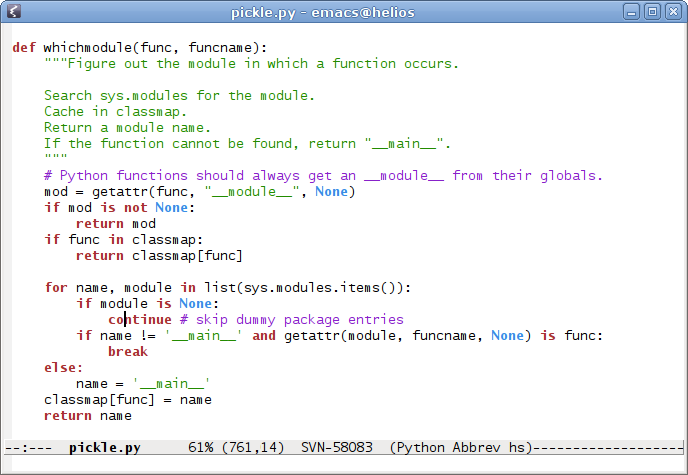
Also if you the pickle module, the standard library reorganization will make it hard for you to create pickle data streams that works both on Python 2 and 3. The problem is pickle saves class and function objects by named reference. This means if you have pickle data created with Python 2, in which a instance whose class was renamed in Python 3, pickle will not be able to recreate the instance in question. Unfortunately, there is nothing yet to help you with that problem. Although it is possible to subclass Unpickler and modify it to rewrite names on-the-fly, this is not very convenient.

In addition to stdlib reorganization, the behavior of some well known APIs has changed. In particular, many methods that used to return lists, now return an iterator or a view. For example, dict’s keys(), items() and values() (Ed. values() is not actually a set-like object for the obvious reason that a dictionary may contain duplicate values. This was an error from my part.) are no longer lists; they return a set-like object called a view. Personnally, I found this change very nice when working graphs implemented using dicts, because I could now use standard set operations, like addition and subtraction, on the views.

Similarly, many built-in functions now return iterators instead of lists. This is the case of map(), filter() and zip(). For map() and filter(), it is typically a good idea to rewrite them as list-comprehension. Another change in the same line is xrange() is the new range(). For most code, this requires no modifications. Again, 2to3 handles these changes for you.

Continuing on API changes, some special methods have been removed or renamed. For example, the next() method on iterators is now called __next__(). To get the next item of an iterator, use the built-in function next().

Also, __getslice__ and friends were removed in favor of __getitem__.

The special methods __hex__ and __oct__ were removed in favor of __index__(). Generally, this requires no change in your code. Note, 2to3 will not remove the old methods.

Another fairly important change in Python 3 is the simplification of the rules for ordering comparisons. So in Python 3, the old three-way comparison rules has completely replaced by a much simpler (and faster too) mechanism (Ed. There wasn’t much rejoice when I presented this change. People kept asking why Python doesn’t generate comparison methods automatically from __lt__ and __eq__).

Clearly, 2to3 won’t translate old three-way compares, so you will need to support three-way and rich comparisons if you want your code to work both on Python 2 and 3. The changes needed are usually straightforward, so this generally not a problem.

We already saw that the syntax for the print statement and unicode string was changed. So, the remaining changes I want to talk about are the other syntactic changes in Python 3. For the most part, the new syntax niceties are also available in Python 2.6 has optional features; the difference in Python 3 is you’re now required to use them. But don’t worry, 2to3 will handle these changes fairly well. So what are these changes?

First, we have new syntax for catching and raising exceptions. In particular, the syntax for saving an exception was simplify to remove ambiguities.

Similarly, the syntax for raising exceptions was simplified. Note that all exceptions must derive from BaseException or, more commonly, from the Exception class. This was optional in Python 2; this is now enforced in Python 3. As a consequence of the new syntax, tracebacks must be new set explicitly via the __traceback__ attribute. However if you need to do that, you probably want to check out a new feature called exception chaining.

In Python 3, we also have new syntax for specifying metaclasses. To do so, we allowed keywords arguments in after base classes list in the class definition. Currently, this is only used to support the new metaclass syntax; but this could be used for other purposes, as well, as long the metaclass used supports it.

Continuing, relative imports now need to use the from-dot-package syntax. If you omit the dot, it will be interpreted as an absolute import.

Now, let me show you two lovely additions to Python 3: set and dict comprehension. But first, I need to introduce the new syntax for set literals.

We can almost guess what is the syntax set and dict comprehension.

So, we are now ready for the real thing: migrating to Python 3. There is more than one way to approach the migration and there is no approach that will fit all your needs. In many cases, you have to experiment and choose whatever work best for you. Also, I am only going to cover the issue of migrating Python code. If you want to migrate C extensions, you will need to check out the online documentation.

The very first step before migrating is to verify you have an excellent test coverage. If you do not have a test suite, it would be a good time to start investing time to create one. I wouldn’t even think about migrating to Python 3 without test suite, since it is practically impossible to predict where your code is going to break.

Once you verified your test suite was alright, you should begin by porting your code to Python 2.6; generally this is effortless. Then, turn on the -3 flag of Python 2.6. This will enable warnings about features that have been removed or changed in Python 3. Run your tests and fix all the warnings you see.

It is also a good idea to modernize your code at this stage; and try to reduce the semantic gaps as much as possible. For example, start using the iterator version of dict.keys(), .values() and .items(); avoid implict str and unicode coercions; use __getitem__ instead of __setslice__; etc. Doing this will decrease the amount of changes the 2to3 translator will have to do, and thus reduce the chances of introducing new bugs.

Once you are done with that, you now ready to port your code to Python 3. This is where it become tricky. First, you will need to decide how you will maintain the Python 3 version of your project.

There is three main possibilities at this point. You can, for one, remove support for Python 2 and move your project completely to Python 3. This is not good idea if you already have a lot of users (in the case of a library).

Another possibility is to modify your code so that the 2to3 tool can translate it, without manual intervention, to a working Python 3 version. This is approach recommended by Python’s core-devel team if you maintains a library that needs to support both Python 2.6 and Python 3. So when you do changes to your code, you edit the Python 2.6 version and run the 2to3 tool again to forward your changes, rather than editing the Python 3 version of the source code. This approach works, but I find it unnecessarily painful as you still end up maintaining a lot of crufts.

So, the approach I prefer is to create a separate branch for Python 3 and start maintaining two lines of development. This works great if you use one of these fancy DVCSs, as you can do your changes in the Python 2 branch and then forward your changes to the Python 3 branch by simply merging them. And when there is incompatibilities, you can run 2to3 tool on Python 3 code and it will fix these for you. An advantage of this approach is it gives a change to clean up your code and remove, from the Python 3 version, all that backward-compatibility stuff you may have accumulated over the years. And for many projects, this will be the only acceptable approach (mainly because of the Unicode changes).

Now, I would like to demo some of the features that are available that will ease the transition to Python 3.

Ed. In this part, I have shown a short demo on how to use 2to3 to convert feedparser to Python 3.0. This portion of the presentation was not prepared in advance and was interactive. If you want to see it, you will need to watch the video.

Concluding remarks:

Ending note. If you appreciated the content of this presentation or have suggestions, let me know! I am currently planning to do another talk at Montreal Python about extending and interfacing external code with Python. This presentation would mostly cover how to write extension using the C API of Python. As you can imagine, preparing a good presentation is lot of work. So any encouragement is welcomed.

Shell tricks: shorthands

Even with tab completion, typing long commands is tedious. But, there’s something even worst: typing the same long commands again, and again, and again… So how do you solve that? It’s simple: you shorten them. Surprising, uh? Okay enough theory, let me show you some examples.

Here’s a tedious command of Type-A:

% sudo aptitude install zsh

Look at it carefully since you will need to hunt these long commands down until none remains. Now, let me explain how you execute a such command. Open up your personal shell initialization file (e.g. ~/.bashrc for Bash, ~/.zshrc for Zsh, etc). Then, add the following:

alias spkgi="sudo aptitude install"

Reload your shell and finally, enjoy:

% spkgi zsh

Now I can introduce, as you can deduce, other shorten commands that you can produce and reproduce:

# Package Management
alias pkg="aptitude"
alias spkg="sudo aptitude"
alias spkgi="sudo aptitude install"
alias spkgu="sudo aptitude safe-upgrade"
alias spkgr="sudo aptitude remove"
alias spkgd="sudo apt-get build-dep"

# Miscellaneous Helpers
alias nc="rlwrap nc"
alias e=$EDITOR
alias se=sudoedit
alias reload="source ~/.zshrc"
alias g=egrep

Next after Type-A tedious commands, we have the Type-S ones. To execute these, you will you need some sort of special shell support. So, here’s some examples of the Type-S monstrosity:

% find Lib/ -name '*.c' -print0 | xargs -0 grep ^PyErr
% find -name '*.html' -print0 | xargs -0 rename 's/\.html$/.var/'
% find -name '*.patch' -print0 | xargs -0 -I {} cp {} patches/

I hope you start to see some patterns (if you don’t, then try harder). The first one could (and should) be rewritten as:

% rgrep --include='*.c' ^PyErr Lib/

But that isn’t short enough for me, so I have a short helper:

rg()
{
    filepat="$1"
    pat="$2"
    shift 2
    grep -Er --include=$filepat $pat ${@:-.}
}
# In Zsh, 'noglob' turns off globing.
# (e.g, "noglob echo *" outputs "*")
alias rg='noglob rg'

It is lovely to use:

% rg *.c ^PyErr Lib/
% rg *.c PyErr_Restore . -C 10 | less
% rg *.[ch] stringlib
% rg *.c ^[a-zA-Z]*_dealloc Modules/ Objects/

The second example is quite similar to the previous one. However, the find/rename combination is much less common (at least for me) than the find/grep one. This one needs to be broken in pieces. One obvious thing to factor out is the find -name with an alias:

alias fname="noglob find -name"

Using this alias, you can rewrite the second example as:

% fname *.html -print0 | xargs -0 rename 's/\.html$/.var/'

It’s better, but it’s not short enough yet. The ugly part of this command is the -print0 | xargs -0. I hate to type that. Wouldn’t it be nice if we could define an alias for it? How about:

alias each="-print0 | xargs -0"

Unfortunately, that doesn’t work since aliases are only expanded if they are in the command position. Luckly, Zsh has that neat feature called global aliases, which does exactly what we want.

alias -g each="-print0 | xargs -0"

With this feature of Zsh, the second example become:

% fname *.html each rename 's/\.html$/.var/'

Now, we can also attack the third one:

% fname *.patch each -I {} cp {} patches/

It is possible to shorten a bit by defining another alias combining each and -I {}, but that won’t make a big difference.

Finally, there are the Type-R tedious commands. These are hard to avoid, unless you’re careful. Here’s again some ridiculous examples to help you recognize these redundant commands:

% gcc -o stackgrow stackgrow.c
% pkg show emacs-snapshot-bin-common emacs-snapshot-common emacs-snapshot-gtk emacs-snapshot
% cat ../lispref.patch ../lwlib.patch ../etc.patch | patch -p1

To reduce these, you don’t need change your shell configuration; you change your habits instead. Using alternations (which are non-standard, but supported by most shells), you can rewrite the two first example as:

% gcc -o stackgrow{,.c}
% pkg show emacs-snapshot{{-bin,}-common,-gtk,}

Now, you are surely asking yourself: “what is different about the third one?” Well, think about it. Got it? No? Ah, come on, it is easy. Here’s a hint:

% echo 'cat ../{lispref,lwlib,etc}.patch | patch -p1' | wc -c
45
% echo 'cat ../lispref.patch ../lwlib.patch ../etc.patch | patch -p1' | wc -c
61

You like my hint, don’t you? Here’s the answer:

% echo 'cat ../li\t ../lw\t ../et\t | patch -p1' | wc -c
37

Tab completion doesn’t work well with prefix alternations. Even if the command using alternation is shorter, it still doesn’t beat good old tab completion.

And that’s all folks. I surely have plenty of other tricks to show, but that will be for the other posts of this short series.

Pickle: An interesting stack language

The pickle module provides a convenient method to add data persistence to your Python programs. How it does that, is pure magic to most people. However, in reality, it is simple. The output of a pickle is a “program” able to create Python data-structures. A limited stack language is used to write these programs. By limited, I mean you can’t write anything fancy like a for-loop or an if-statement. Yet, I found it interesting to learn. That is why I would like to share my little discovery.

Throughout this post, I use a simple interpreter to load pickle streams. Just copy-and-paste the following code in a file:

import code
import pickle
import sys

sys.ps1 = "pik> "
sys.ps2 = "...> "
banner = "Pik -- The stupid pickle loader.\nPress Ctrl-D to quit."

class PikConsole(code.InteractiveConsole):
    def runsource(self, source, filename="<stdin>"):
        if not source.endswith(pickle.STOP):
            return True  # more input is needed
        try:
            print repr(pickle.loads(source))
        except:
            self.showsyntaxerror(filename)
        return False

pik = PikConsole()
pik.interact(banner)

Then, launch it with Python:

$ python pik.py
Pik -- The stupid pickle loader.
Press Ctrl-D to quit.
pik>

So, nothing crazy yet. The easiest objects to create are the empty ones. For example, to create an empty list:

pik> ].
[]

Similarly, you can also create a dictionary and a tuple:

pik> }.
{}
pik> ).
()

Remark that every pickle stream ends with a period. That symbol pops the topmost object from the stack and returns it. So, let’s say you pile up a series of integers and end the stream. Then, the result will be last item you entered:

pik> I1
...> I2
...> I3
...> .
3

As you see, an integer starts with the symbol ‘I’ and end with a newline. Strings, and floating-point number are represented in a similar fashion:

pik> F1.0
...> .
1.0
pik> S'abc'
...> .
'abc'
pik> Vabc
...> .
u'abc'

Now that you know the basics, we can move to something slightly more complex — constructing compound objects. As you will see later, tuples are everywhere in Python, so let’s begin with that one:

pik> (I1
...> S'abc'
...> F2.0
...> t.
(1, 'abc', 2.0)

There is two new symbols in this example, ‘(‘ and ‘t’. The ‘(‘ is simply a marker. It is a object in the stack that tells the tuple builder, ‘t’, when to stop. The tuple builder pops items from the stack until it reaches a marker. Then, it creates a tuple with these items and pushes this tuple back on the stack. You can use multiple markers to construct a nested tuple:

pik> (I1
...> (I2
...> I3
...> tt.
(1, (2, 3))

You use a similar method to build a list or a dictionary:

pik> (I0
...> I1
...> I2
...> l.
[0, 1, 2]
pik> (S'red'
...> I00
...> S'blue'
...> I01
...> d.
{'blue': True, 'red': False}

The only difference is that dictionary items are packed by key/value pairs. Note that I slipped in the symbols for True and False, which looks like the integers 0 and 1, but with an extra zero.

Like tuples, you can nest lists and dictionaries:

pik> ((I1
...> I2
...> t(I3
...> I4
...> ld.
{(1, 2): [3, 4]}

There is another method for creating lists or dictionaries. Instead of using a marker to delimit a compound object, you create an empty one and add stuff to it:

pik> ]I0
...> aI1
...> aI2
...> a.
[0, 1, 2]

The symbols ‘a’ means “append”. It pops an item and a list; appends the item to the list; and finally, pushes the list back on the stack. Here how you do a nested list with this method:

pik> ]I0
...> a]I1
...> aI2
...> aa.
[0, [1, 2]]

If this is not cryptic enough for you, consider this:

pik> (lI0
...> a(lI1
...> aI2
...> aa.
[0, [1, 2]]

Instead of using the empty list symbol, ‘]’, I used a marker immediately followed by a list builder to create an empty list. That is the notation the Pickler object uses, by default, when dumping objects.

Like lists, dictionaries can be constructed using a similar method:

pik> }S'red'
...> I1
...> sS'blue'
...> I2
...> s.
{'blue': 2, 'red': 1}

However, to set items to a dictionary you use the symbol ’s’, not ‘a’. Unlike ‘a’, it takes a key/value pair instead of a single item.

You can build recursive data-structures, too:

pik> (Vzoom
...> lp0
...> g0
...> a.
[u'zoom', [...]]

The trick is to use a “register” (or as called in pickle, a memo). The ‘p’ symbol (for “put”) copies the top item of the stack in a memo. Here, I used ‘0′ for the name of the memo, but it could have been anything. To get the item back, you use the symbol ‘g’. It will copy an item from a memo and put it on top of the stack.

But, what about sets? Now, we have a small problem, since there is no special notation for building sets. The only way to build a set is to call the built-in function set() on a list (or a tuple):

pik> c__builtin__
...> set
...> ((S'a'
...> S'a'
...> S'b'
...> ltR.
set(['a', 'b'])

There is a few new things here. The ‘c’ symbol retrieves an object from a module and puts it on the stack. And the reduce symbol, ‘R’, apply a tuple to a function. Same semantic again, ‘R’ pops a tuple and a function from the stack, then pushes the result back on it. So, the above example is roughly the equivalent of the following in Python:

>>> import __builtin__
>>> apply(__builtin__.set, (['a', 'a', 'b'],))

Or, using the star notation:

>>> __builtin__.set(*(['a', 'a', 'b'],))

And, that is the same thing as writing:

>>> set(['a', 'a', 'b'])

Or shorter even, using the set notation from the upcoming Python 3000:

>>> {'a', 'a', 'b'}

These two new symbols, ‘t’ and ‘R’, allows us to execute arbitrary code from the standard library. So, you must be careful to never load untrusted pickle streams. Someone malicious could easily slip in the stream a command to delete your data. Meanwhile, you can use that power for something less evil, like launching a clock:

pik> cos
...> system
...> (S'xclock'
...> tR.

Even if the language doesn’t support looping directly, that doesn’t stop you from using the implicit loops:

pik> c__builtin__
...> map
...> (cmath
...> sqrt
...> c__builtin__
...> range
...> (I1
...> I10
...> tRtR.
[1.0, 1.4142135623730951, 1.7320508075688772, 2.0, 2.2360679774997898,
2.4494897427831779, 2.6457513110645907, 2.8284271247461903, 3.0]

I am sure you could you fake an if-statement by defining it as a function, and then load it from a module.

def my_if(cond, then_val, else_val):
    if cond:
        return then_val
    else:
        return else_val

That works well for simple cases:

>>> my_if(True, 1, 0)
1
>>> my_if(False, 1, 0)
0

However, you run into some problems if mix that with recursion:

>>> def factorial(n):
...     return my_if(n == 1,
...                  1, n * factorial(n - 1))
...
>>> factorial(2)
RuntimeError: maximum recursion depth exceeded in cmp

On the other hand, I don’t think you really want to create recursive pickle streams, unless you want to win an obfuscated code contest.

That is about all I had to say about this simple stack language. There is a few things haven’t told you about, but I sure you will be able figure them out. Just read the source code of the pickle module. And, take a look at the pickletools module, which provides a disassembler for pickle streams. As always, comments are welcome.
Pretty Emacs: Compile guide for unsupported platforms

If you are using a platform other than a i386, you will need to compile my Emacs packages yourself. So, here a simple guide how to do this.

  1. First, make sure you have the source repository enabled, by adding deb-src http://ppa.launchpad.net/avassalotti/ubuntu gutsy main to your /etc/apt/sources.list.
  2. Install the build-dependencies and some packaging tools:
    sudo apt-get update
    sudo apt-get build-dep emacs-snapshot
    sudo apt-get install dpkg-dev devscripts fakeroot emacsen-common
  3. Download the source package and compile it with:
    fakeroot apt-get --compile source emacs-snapshot
  4. Finally, install the newly built packages:
    sudo dpkg -i emacs-snapshot*.deb

Note, this final step may fail if you have an older version of the package already installed. If it is the case, just do it again.

Welcome to Mr. Crystal Ball

As some of you may already know, I am a die-hard fan of productive editing. That is probably because I don’t find myself very fast, on a keyboard. So, I am always trying to find ways to improve my editing speed. And when I ain’t surfing on the web, I am either typing stuff in my shell or my editor. So today, I would like to share a few tricks I uses in my default shell, Z Shell.

The shell history can be a powerful tool. If you find yourself typing commands again, and again, and again, you probably can use it at your advantage. You probably already know about Ctrl+R, which is bound to history-incremental-search-backward command in most shells. Personally, I don’t find it very useful since it tries to find a match everywhere, but it’s better than cycling through the history with the Up/Down keys. In fact, anything is better than the Up/Down keys. So, why not rebind them to something more useful, like history-search-backward? Well, that is easy. With Zsh, you need to add these two line to your .zshrc:

bindkey '\e[A' history-search-backward
bindkey '\e[B' history-search-forward

In fact, if you’re using Emacs key-bindings, you don’t even need to do anything, because Meta+P and Meta+N are already bound to these two functions. Incidentally, Steven Harms is advocating to enable this feature by default in Ubuntu, for Bash’s users. Personally, I am not sure if it’s really necessary to make it a default. I am not a fan of modifications in .inputrc, either. But, I will leave that discussion for another blog post.

Now, that we have functional Up/Down arrow keys, can we do more? Yes, we can! Let me introduce one of my favorite features of Zsh, preemptive auto-completion. If you’re tired typing TAB a zillion times a day, you will love this one. This feature implements predictive typing using history search and auto-completion. Again, to enable it, just copy these lines to your configuration file:

autoload predict-on
zle -N predict-on
zle -N predict-off
bindkey '^Z'   predict-on
bindkey '^X^Z' predict-off
zstyle ':predict' verbose true

Here, note that predict-on and predict-off, are bounded to Ctrl+Z and Ctrl+X Z respectively. That means you can turn it on/off, whenever you need to. You will find useful to turn it off when you edit the middle of a command, since it can confuse the prediction. But other than that, it’s great.

Sometime, the shell editor is not enough for me — I need something more powerful when I edit long commands. So, I use another cool built in function of Zsh, called edit-command-line. With this feature, I can edit the current command with an external editor, defined by the environment variable $EDITOR. To enable it, just copy-and-paste this:

autoload edit-command-line
zle -N edit-command-line
bindkey '^Xe' edit-command-line

So, when I think the command will be long, like a for-loop. I just press Ctrl+X e, which launches, on my system, emacsclient. I am always running Emacs with its server, therefore the shell command is instantaneously loaded into a Emacs buffer. Then when I am done, I close the Emacs session with Ctrl+x # and the command appears in my shell. It is just sweet.

Even if you’re a master with your editor, nothing beats a short alias, or a shell script. I keep a full directory of useful scripts, to automate my daily tasks. At first, writing scripts feels a bit awkward. If you’re like me, you will always worry that your scripts might go terribly wrong, and eat your data. That’s totally normal, but don’t be a fool. Automating your tasks, even the most trivial ones, will save some of your precious time. Unlike scripts, which can really do some heavy automation, aliases are just a shell convenience, like auto-completion. Personally, I am not a big fan of fancy aliases. (I tend to use functions for the more fancy things.) Anyway, here some of my favourite aliases:

# Set up aliases
alias c=clear
alias d='dirs -v'
alias e=$EDITOR
alias grep=egrep
alias h=history
alias j=jobs
alias po=popd
alias pu=pushd
alias ss='screen -Rx'

# Global aliases -- These do not have to be
# at the beginning of the command line.
alias -g M='|more'
alias -g L='|less'
alias -g H='|head'
alias -g T='|tail'

# Go to parent directories without `cd'
setopt autocd
alias -g ...='../..'
alias -g ....='../../..'
alias -g .....='../../../..'

I certainly have a ton of shell tricks, but I will keep them for my other blog posts. So, that’s all folks!

Debian Packaging 101 (Part 1)

Making packages for Debian derivatives (like Ubuntu) isn’t really hard. It just required some dedication to learn how the packaging system work. Yet, most users don’t know how to make packages for their distribution. In this series, I will try to give a brief introduction packaging.

First, I would like to tell you that, if you never compiled a program before, this short guide will be useless for you. Therefore, I assume that you know and that you did compile a program before. Also, I will use the term “package” to refer to the compiled program package ready to installed on Debian or its derivatives. And, I will use the term “program” to refer to the software, like “GNU Emacs”.

A package consists of two things: the source code of a program and a debian/ directory which contains information how to build the program. There is different methods to specify the packaging information. The most common one, and the one I will discuss here, is using a tool called debhelper. This tool makes the packaging process easier by abstracting the common packaging tasks into little scripts, run at the build time. The typical directory structure of a package looks like this:

gnu-hello/
  debian/
    changelog
    compat
    control
    copyright
    postinst
    prerm
    rules
  doc/
  man/
  src/
  AUTHORS
  ChangeLog
  configure
  COPYING
  INSTALL
  README

Obviously, this example is simplified, but you get the idea. That are the interesting things for a packager. By the way, GNU Hello a good example of package to study. You get it with:

$ apt-get source hello-debhelper

Here, a quick description of the files in the debian/ directory:

  • changelog: The history of the package’s changes.
  • compat: A file that contains the debhelper version that is used.
  • control: The description of the package and the list of dependencies.
  • copyright: A copy of the licence the program uses.
  • postinst: A post-installation script used to setup things after the package has been unpacked.
  • prerm: Another script that is run before the removal of the package. It usually used to undo the things postinst has done.
  • rules: The instructions how to build the package. This is simply a Makefile.

In more complicated programs, there is usually other files. However, I won’t talk about them in this introduction. Anyway, I am out of time. In the second part of this series, I will explain the tools used to build packages.

Pretty Emacs

Update: If you are using Ubuntu 8.04 LTS “Hardy Heron” or Ubuntu 8.10 “Intrepid Ibex”, use the packages in the PPA of the Ubuntu Emacs Lisp team, instead of the packages referenced here. For Ubuntu 9.04 “Jaunty Jackalope” and newer, use the packages in Ubuntu repositories.

Emacs is my editor of choice. In fact, I should say it’s my framework of choice, but that’s for another post. Until recently, I disliked the poor font backend of Emacs. So, I was always using Emacs within a terminal window to get a decent looking interface. However, this grungy font era is over, since Emacs’s hackers added recently to my favorite editor a XFont backend, thus making possible to use good looking fonts, like Bitstream Vera Sans Mono.

Screenshot of Emacs with XFT support

I made a package that makes the installation, as painless as possible. So, feel free to use it. However, please note that this is an alpha release of Emacs, therefore it should only be used for testing. (From my experience, it’s rock solid.)

Still interested? Then, here the instructions. First, add my repository into your software source list, by adding the following lines to /etc/apt/sources.list:

deb     http://ppa.launchpad.net/avassalotti/ubuntu feisty main
deb-src http://ppa.launchpad.net/avassalotti/ubuntu feisty main

If you are running Ubuntu 6.10 (Edgy Eft) or the current development version of Ubuntu (Gutsy Gibbon), change feisty for edgy or gutsy.

Finally, run either apt-get or aptitude to fetch and install the packages:

sudo aptitude update
sudo aptitude install emacs-snapshot emacs-snapshot-el

Now, you need to specify the font you want to use in your Xresources file.

echo "Emacs.font: Monospace-10" >> ~/.Xresources
xrdb -merge ~/.Xresources

Here, I use the default monospace font, but any other monospaced font should work too. For example, if you want to use Lucida Sans Typewriter instead, change Monospace-10 for Lucida Sans Typewriter-10 in the above command.

And that’s it! Now, launch Emacs and enjoy the good looking fonts.

If you need support with the package, just email me at alexandre@peadrop.com.

Update: Il y a, maintenant, une version en français de ce guide sur le wiki de Ubuntu-fr.

Understanding Linux File Permissions

File permissions are probably one of the biggest difference between Windows and Unix-style operating systems. They make Linux much more secure when they are well used. However, they can also cause nightmare to the casual Linux administrator.

The first thing you need to know is that a Linux system has two way of classifying users. There is, of course, the user name, but there is also groups. Groups are, strictly speaking, only a way to share permissions between the users. For example, all the member of the admin group on your system is able to use the command sudo. As you probably know, sudo allows you to run a command as another user (by default, the root user).

Let me introduce you to your command-line friends that will help you to manage the permissions of your system.

  • adduser: This command let you add new user on your system. It can also add a user into a group.
  • addgroup: Its name says it all. This command let you add new group on your system.
  • chmod: I believe this is the most widely known Unix command. It is even a verb in the world of server-side technology, like PHP. This command let you alter the permissions of a file. It is a swiss-army knife. Learn it, and use it well.
  • chown: Also a very important command, chown can change the user and group ownership of a file.
  • chgrp: This is chown’s little brother. Unlike chown, this command can only change the group ownership of a file.
  • groups: Somehow less important but still useful, groups shows you the groups you are a member of.
  • whoami: Don’t know why, but I love the name of this command. Anyway, this command tells you who you are.
  • who: This command shows you who is login on your system. I never use it, since I find w more useful for my usage.
  • w: And here our last little friend, the w command. It displays a list of the logged users like who, but also display their attached process and the uptime of the machine you’re on.

Obviously if you want to learn to use those commands well, you will need to do some homework and read their respective manual pages (with man <command>).

So, how permissions work? First, we need an example:

alex@helios /etc % ls -l
total 1548
-rw-r--r--  1 root   root      2584 2006-11-29 08:40 adduser.conf
drwxr-xr-x  4 root   root      4096 2006-12-13 10:46 apt
drwxr-xr-x  2 root   root      4096 2006-12-17 00:15 cron.d
drwxr-sr-t  5 cupsys lp        4096 2006-11-29 08:51 cups
-rw-r--r--  1 root   root       817 2006-11-29 08:39 fstab
-rw-r--r--  1 root   root       806 2006-12-17 00:15 group
-rw-r--r--  1 root   root      1430 2006-12-17 00:15 passwd
lrwxrwxrwx  1 root   root        13 2006-11-29 08:40 motd -> /var/run/motd
drwxr-xr-x  2 root   root      4096 2006-12-22 23:36 rc0.d
drwxr-xr-x  2 root   root      4096 2006-12-19 12:06 rc1.d
drwxr-xr-x  2 root   root      4096 2006-12-19 12:06 rc2.d
drwxr-xr-x  2 root   root      4096 2006-12-19 12:06 rc3.d
drwxr-xr-x  2 root   root      4096 2006-12-19 12:06 rc4.d
drwxr-xr-x  2 root   root      4096 2006-12-19 12:06 rc5.d
drwxr-xr-x  2 root   root      4096 2006-12-22 23:36 rc6.d
-rwxr-xr-x  1 root   root       306 2006-11-29 08:40 rc.local
-rw-r-----  1 root   shadow     873 2006-12-17 00:15 shadow
-rw-r--r--  1 root   root       214 2006-12-02 13:27 shell
-r--r-----  1 root   root       403 2006-11-29 09:10 sudoers

Only the first, third and fourth column are interesting for us, right now. The first column gives us information about the file permissions. The third is the owner of the file and the fourth is the group.

So, what all this mess means? File permissions are like little switches you turn on and off. There is three types of permission: read, write, and execute. There’s also three types of ownership: owner (or user), group, and other. So, 3 times 3 equals 9 switches you can control.

That is exactly what we see in the first column. The first element of this column is the type of the file. A - means it’s a normal file; a d is for a directory and l is for a link pointing to a file. There is several other types of file, but they are much less useful to know for the casual Linux system administrator.

You probably figured that the rest are the permissions. Here a legend of the symbol I will use for the rest of this post:

u - owner
g - group
o - others

r - read
w - write
x - execute

t - file type

As you will see, there is nothing complicated about the first column in the output of the ls -l command. It’s a simple representation of the switches I mentioned earlier. So, let’s decrypt it:

tuuugggooo

That’s it. Just read it out loud: type, owner, group and others. So, if you see something like -rwxr-xr-x, you can read it as: “a normal file which the owner has the read, write and execute permission and which its group and others has the read and execute permission.” That is extremely verbose, but correct.

You can change the permissions with the chmod command:

alex@helios ~ % ls -l file
-rw-r--r-- 1 alex alex 0 2007-01-01 23:58 file
alex@helios ~ % chmod og+rw file
alex@helios ~ % ls -l file
-rw-rw-rw- 1 alex alex 0 2007-01-01 23:58 file

I won’t go in details here, because it’s quite simple to understand. If you want to know more, The info page of chmod is a great source of information (info coreutils ls).

If you already knew what are permissions, you are probably 1) rolling on the floor laughing, how I gone into the great details of that simple thing, or 2) grumbling that you want a refund because I wasted your bandwidth. So, hold on here the more advanced stuff.

You probably saw numerical (or should I say octal) permissions, like 777. But, do you actually know how to read them? For example, what 645 means? Hopefully, you aren’t trying to remember all of them. I going to give a trick.

As you probably know, each digit represents the permissions of one type of ownership (owner, group and other). One thing you need to know is they are not decimal digits; they are octal digits. So, something like 855 is not a valid permission.

Now, here one interesting property of octal digit: you can write them all as three bits (binary digits) number. Here the full list:

Octal   Binary
0       000
1       001
2       010
3       011
4       100
5       101
6       110
7       111

As you may know, bits are like switches you flip on and off. Sound familiar? Right, they are exactly like permissions. Now imagine that instead of letters, the permissions in the ls -l were shown as binary numbers:

alex@helios ~ % ls -l file
-110100100 1 alex alex 0 2007-01-01 23:58 file

110100100 is a perfectly legit binary number and in octal it is 644. So, what happens if we chmod our file to 644? You certainly deduced it:

alex@helios ~ % chmod 644 file
-rw-r--r-- 1 alex alex 0 2007-01-01 23:58 file

Pretty nice, eh? You been working with the binary system without knowing it. Back to our problem, you need to change the permissions of a file to 645. So, how do you calculate what it means? That is simple, now that you know it’s just a binary number:

Binary  Octal  English
100     4      read
010     2      write
001     1      execute

Therefore:

owner: 6 = 4+2 = read+write
group: 4 = 4   = read
other: 5 = 4+1 = read+execute

So, let’s check if we were right:

alex@helios ~ % chmod 645 file
alex@helios ~ % ls -l file
-rw-r--r-x 1 alex alex 0 2007-01-01 23:58 file

I bet you didn’t know it was that simple. Now, you can show to your geek friends how good you are by calculating any octal permissions in your head.

There is also some special permissions you can use too, like setuid, setgid, and sticky. I won’t cover them here, because they are pretty useless to the casual Linux system administrator.

I hope you enjoyed this introduction, because that’s all folks!